How to install REMOTE DESKTOP (VNC) on RASPBERRY PI
Date: 5 May, 2021After installing Raspbian, the first thing we should do is install some method to be able to configure our Raspberry remotely, of which I can think of two options:
- Enable SSH: which will make that we can access from another computer to the command line of our Raspberry.
- Enable VNC: Which will allow us to access the desktop of our Raspberry from another computer, looking exactly the same as if we were in it.
In this article I will explain you how to enable VNC and how to use it, but soon I will bring an article that will explain how to enable SSH.
Índice de contenidos
Enable VNC on Raspberry
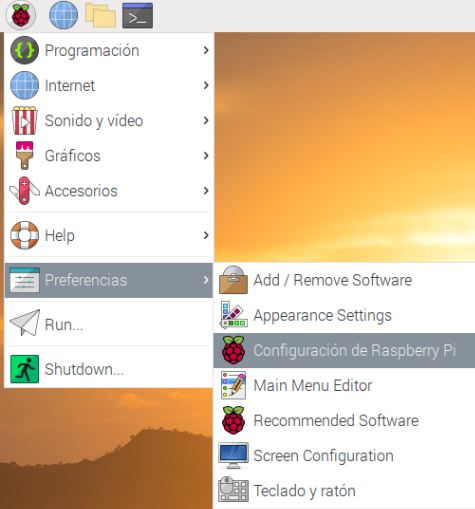
The first thing we must do , is to go to the home icon of our Raspberry , and go to Preferences and click on Raspberry PI Settings.
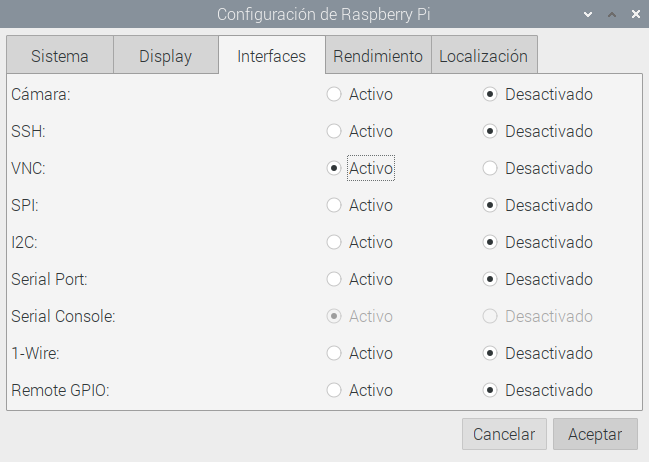
And in the window that opens simply go to the Interfaces section and select the VNC option as shown in the following image, then just click on accept.
Installing VNC Viewer and connecting to the remote desktop
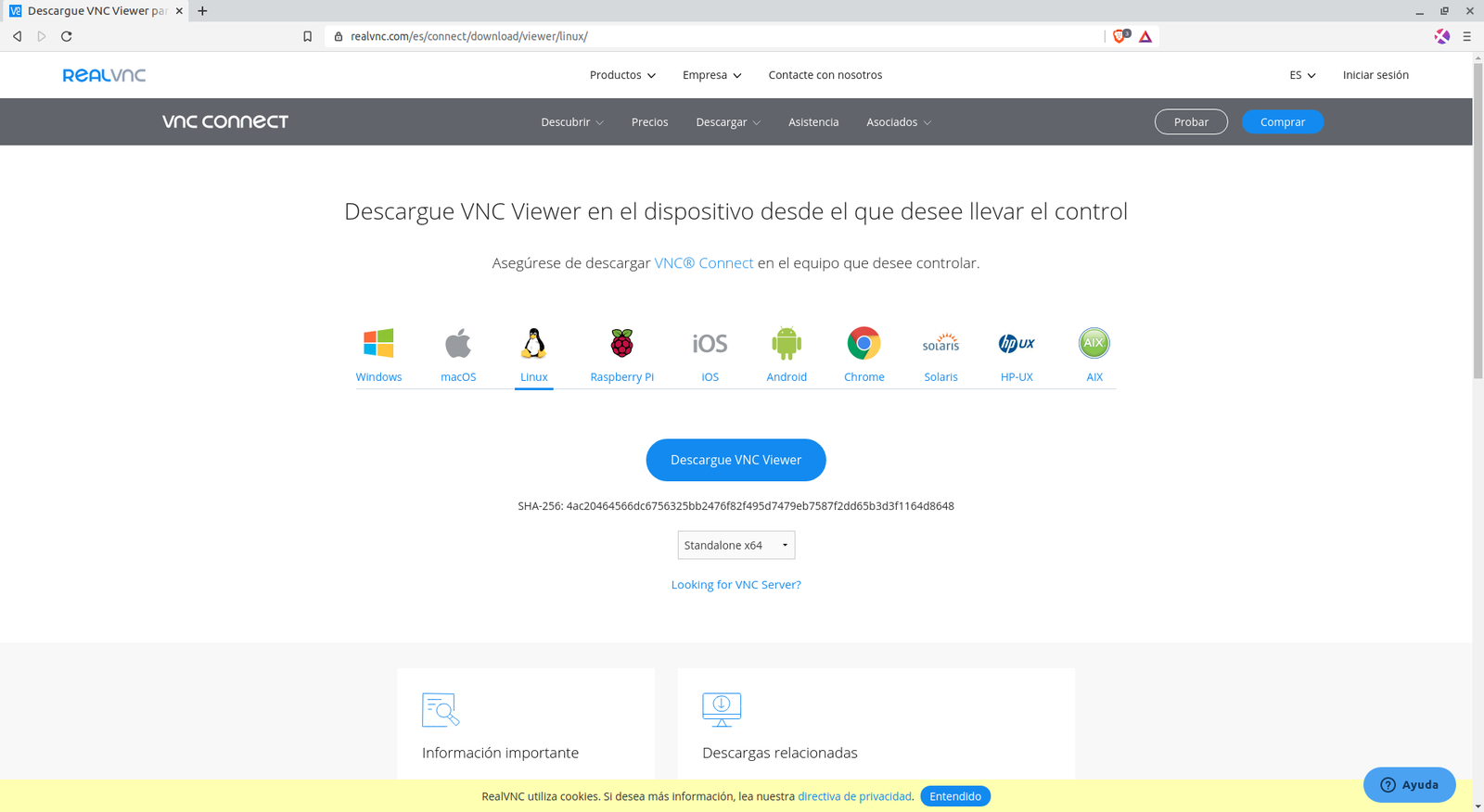
Once this is done we will restart our Raspberry, it will already have VNC enabled, now we must go to the computer that we will use to connect to our Raspberry and download a program that allows us to display a remote desktop via VNC. I have tried several and I dare to say that VNC Viewer is the one that has worked best for me, the simplest and the one that gives less problems, so we will go to its official page and download the option that corresponds to us according to our operating system, if you use Windows directly click on Windows and click on download, if you are using Ubuntu like me, click on Linux and select DEBX64 as shown in the following image and click on Download.
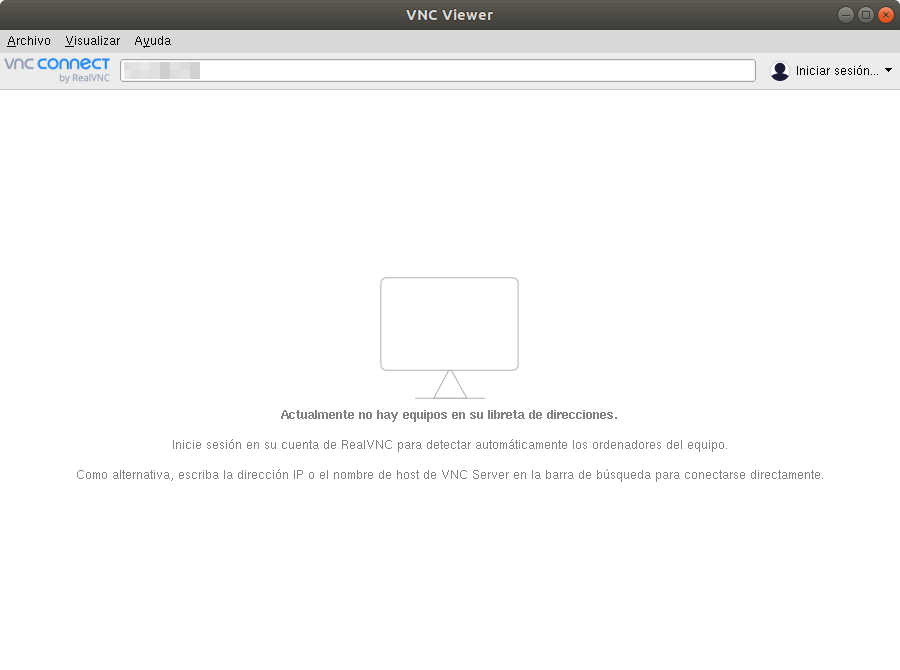
Once the program is downloaded and installed, we will have an interface similar to this, type the IP of our Raspberry and press the enter key.
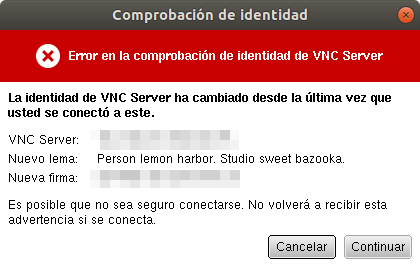
If all goes well and your computer has a connection to your Raspberry, you will get a window similar to this one, just click Continue.
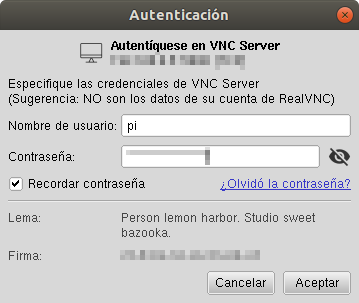
Now it will ask us to enter the username and password of our Raspberry, type them and hit OK, (the username is “pi” , if you have not changed it).
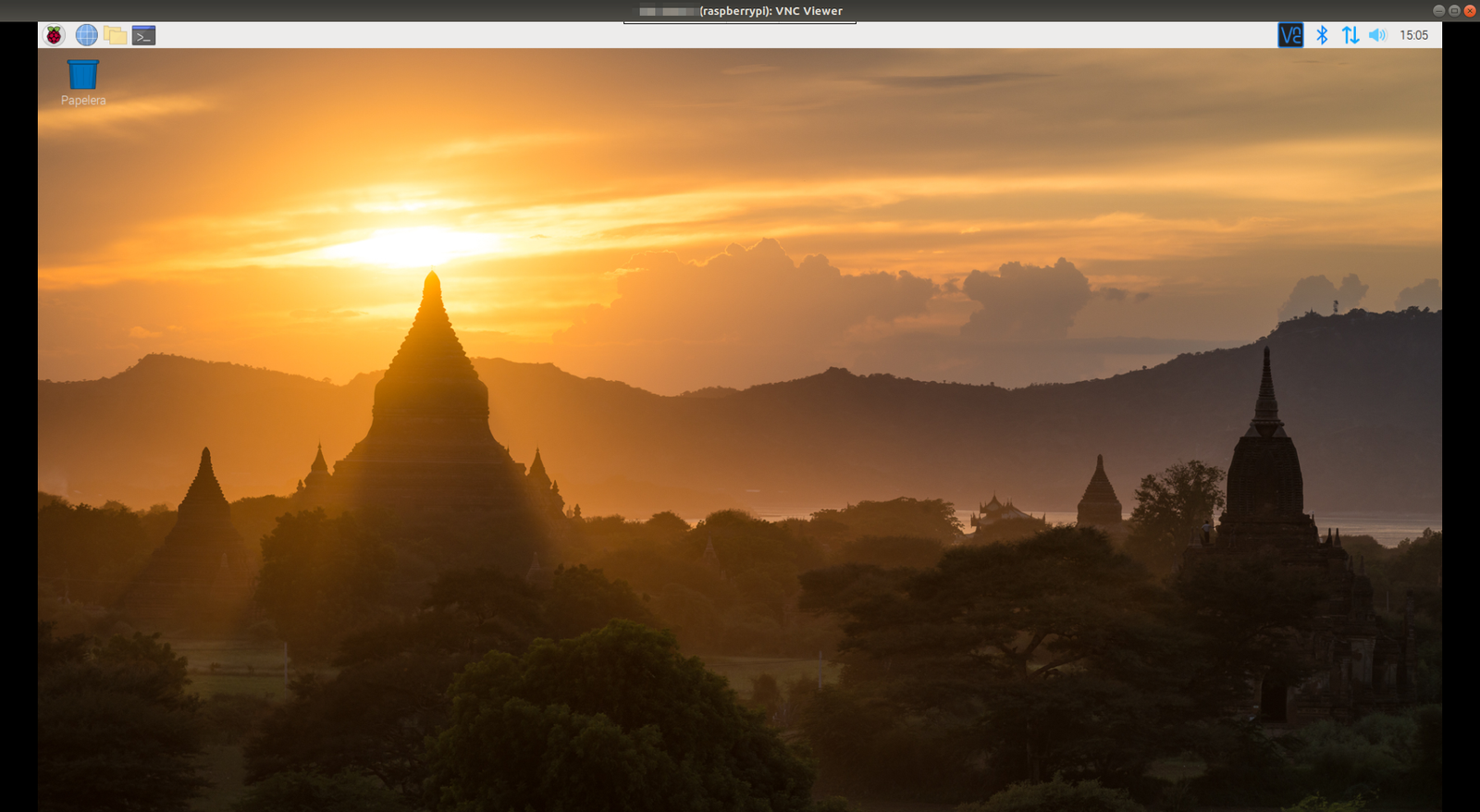
And finally we will be able to see the desktop of our Raspberry as we would see it on a monitor and we will be able to work on it more comfortably.
Possible problem with VNC Viewer and solution.
It may happen that when we connect via VNC, everything works, but we get a black screen that says “Currently can not display the desktop“, this happens because Raspbian does not mount the desktop if it does not detect a monitor connected via HDMI.
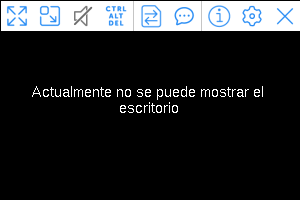
To solve this problem you must turn off your Raspberry, connect the HDMI cable from a monitor to your Raspberry and turn it on. This way Raspbian will activate the desktop and VNC will be able to show the desktop, after this action you can disconnect the HDMI cable.
VNC Viewer on Android and IOS
There is also a way to access the desktop of our Raspberry through our phone or tablet, with the official VNC Viewer application. I have tested it and I think it could be useful to get us out of some trouble although its use would not be the most practical and efficient.


With this finally our Raspberry will be ready and we could disconnect the keyboard and mouse from it, thank you very much for reading the article and if you have any questions feel free to comment here below in the comments section.
Leave a Reply